Showing posts with label Android. Show all posts

Samsung Galaxy Note 8 Release Date, Price, Specs, Features

An intriguing report this week suggests that Samsung may be imitating the iPhone range when the Galaxy Note 8 hits the stores. With Samsung having been involved in supplying components for the iPhone series, it is suggested that it has gained inspiration from this process and will ape one of the most distinctive iPhone 7 features.

OLED 3D Touch

Korean reports suggest that Samsung is working on a pressure-sensitive OLED touch display, and that this could debut in both the iPhone 8 and Galaxy Note 8. This 3D Touchscreen will incorporate the 3D Touch functionality that has been part of previous LCD generations, updating it for the contemporary marketplace.


Galaxy Note 8Galaxy Note 8
1399156 / Pixabay

Samsung has reportedly already debuted this screen at the Mobile World Congress, although it was obviously not part of the public trade show. Samsung supposedly gave a behind closed doors demonstration of the potential of this device, and it is now believed that it could make its first appearance in the Galaxy Note 8, before being part of the iPhone 8 later this year. “The latest technology boasts higher sensitivity and a wider range of pressure-sensing levels compared to the previous one used in Huawei’s P9 in 2015,” a source close to the Apple supply chain commented.
However, it is not yet clear whether the new components will be ready in time for the Galaxy Note 8. While the technology is not quite in prototype state, it may not be prepared for mass consumption in time for the August and September release dates of the Galaxy Note 8 and iPhone 8 respectively.
But it is obvious that both Apple and Samsung would love to embrace this in the next generation of their devices, as the new feature will effectively replaced the virtual Home button. It has been widely reported that both Apple and Samsung are looking to phase out this frequent feature of mobiles this year, and this new technology could obviously play a major part in this process.
It would undoubtedly be a major filip for Samsung to include some form of pressure-sensitive technology in the Galaxy Note 8, as this was seen as a major innovation and selling point of the iPhone 7. it would also be an obvious way that Samsung could retain all the existing functionality of the Galaxy Note range while also removing the Home button.

Dual-camera coming

Elsewhere, it has been suggested this week that Samsung will include a dual-camera in the Galaxy Note 8. reports have focused on the Korean manufacturer updating its camera capabilities in an attempt to impress consumers ahead of what will effectively be a relaunch of the Galaxy Note series.
It is notable that Samsung recently unveiled its latest high-spec Exynos 8895 chipset, and this features provisions for supporting dual-camera technology. This suggests that the chip will feature in the Galaxy Note 8, and that the chipset will play a part in delivering dual-lens technology.
Leaks from close to the Samsung supply chain also suggest that the dual-camera technology that Samsung will include in the Galaxy Note 8 differs from some of the other examples already present in the marketplace. It is believed that the dual-sensor snapper that Samsung wishes to include in the Galaxy Note 8 features two differing sensors. The first of these is described as high-powered, while the other is low-powered. This suggests a similar setup to devices previously released by HTC.
Considering that the Galaxy Note 8 should also include a significantly more powerful chipset, it is fair to assert that the photographic capabilities of the next generation device will be a big improvement over even the doomed Galaxy Note 7. It is easy to forget now that this particular handset was the recipient of excellent reviews prior to its exploding demise.
Additionally, it is also known that the Exynos 8895 has the potential to support megapixel ratings of up to 28-megapixels for both rear and front sensors. Whether Samsung will take advantage of this remains to be seen, but it has led some pundits to speculate that the megapixel rating of the smartphone could be increased significantly over previous generations. Thus, the Korean corporation could inch up the camera in the Galaxy Note 8 to 16-megapixels, at least according to some reports.
Forbes also suggested this week that a dual-camera had been considered for the Galaxy S8 before Samsung shelved the idea. It is not known why this decision was taken, or whether there were technological or logistical problems. Another possibility is that Samsung wishes to distinguish the Galaxy Note range from the Galaxy S series by including a dual-camera.
But what has emerged from the Galaxy S8 generation is that Samsung has a prototype of a duall-camera module available. This means that adapting it for the Galaxy Note 8 generation should be feasible. And there is no doubt that the Galaxy Note 8 requires as many unique features as possible in order to stay relevant; Samsung already faces a challenge to restore the reputation of the brand after the Galaxy Note 7 disaster.

Third product range expected

Another interesting suggestion this week is that the Galaxy Note 8 may no longer be the most premium Samsung mobile release. Reports have focused on a potential third device release from the Korean manufacturer, featuring a luxurious design and quality beyond anything that Samsung has delivered so far.
Reports suggest that this prototype could be unveiled at some point this year, although it may not actually become available to the public until 2018. It is believed that Samsung also showed off this device at the Mobile World Congress in Barcelona, with a private demonstration to a number of partners having apparently taken place.
The South Korean giant is attempting to prevent leaks at this time, but there are strong rumors already circulating that this is the foldable device that has been so strongly anticipated. Samsung initially debuted this prototype technology at a trade show in 2008, and one decade later it could finally be ready for the marketplace.
UPDATE 03-10-2017: As Samsung continues its preparation for the range of smartphones that the corporation will release in 2017, rumors this week suggest that the Galaxy Note 8 may be rather similar to the Galaxy S8 Plus. Samsung has yet to confirm either device, but it seems that the two phablet contenders will have a great deal in common.

Trickle down

Samsung is expected to include several new features in the forthcoming Galaxy S8 Plus, with the anticipation being that these will ultimately trickle down into a Galaxy Note 8 release later in 2017. In previous generations, the Galaxy Note has been more powerful than the Galaxy S series, with this contributing to the exalted reputation of the phablet range.

But after the Galaxy Note 7 fiasco, it seems that Samsung is reconsidering the way that it positions its major devices. Murmurings indicate that Samsung may release two phablet devices during its spring launch, with the larger of these two, the Galaxy S8 Plus, featuring a 6.2-inch display. This would make the scale of the handset similar to that of the Galaxy Note 7, which had 153.5 x 73.9 x 7.9 mm dimensions 

ZTE teams up with BMW's iconic Designworks for the Axon 7

BMW's Designworks has a storied history. The design firm has created evocative products for over 40 years, with more recent efforts including AR goggles for carmaker MINI and bobsleds for the U.S. Olympic team. It also made this excellent PC chassis in collaboration with Thermaltake. The design studio is now partnering with Chinese manufacturer ZTE over the design of its upcoming phone, the Axon 7.
ZTE Axon 7
From the sketch, it looks like the Axon 7 will offer dual front speakers, as well as a fingerrint sensor at the back. The phone's listing on TENAA suggests we'll see a 5.5-inch QHD display, Snapdragon 820 SoC, 4GB of RAM, 64GB storage, 20MP camera, 8MP front camera, 3140mAh battery, and Android 6.0 Marshmallow out of the box. ZTE is aiming to solidify its position in the U.S., and as such we may see the Axon 7 offered at a very competitive price, severely undercutting the likes of the Galaxy S7.

Pebble introduces Pebble 2, Time 2 and Pebble Core

Pebble has just announced its third, and what the company is calling its best, Kickstarter campaign. This time around, Pebble is offering up the Pebble 2, Time 2 and Pebble Core. The Pebble 2 goes back towards the design of the original Pebble, but adds heart rate monitoring this time around. The Time 2 once again features a color display, and keeps the design of the Pebble Time, but now the battery is said to last 10 days. Pebble is only offering a steel version of the Time 2.
-family: 'Proxima Nova Regular', helvetica, Arial, sans-serif; font-size: 19px; font-stretch: inherit; line-height: 1.352; margin-bottom: 25px; padding: 0px; vertical-align: baseline;"> The all-new piece here is the Pebble Core, which can be used for a variety of purposes. Pebble is offering a Pebble Core for Runners and a Pebble Core for Hackers. The running one clips on to your running gear, letting you leave your phone at home. You can listen to music and more without needing to lug around anything else. The hackers version is a keychain computer that "becomes your magic button for anything."
All of these are now available to be backed on Kickstarter. Pricing for the Pebble Core starts at $69 on Kickstarter, and it will retail for $99. The Pebble 2 is available on Kickstarter for $99, with its retail price being $129, and the Time 2 can be yours for $169 ahead of its $199 retail pricing. Shipments look to begin as early as September 2016 for select units, or as late as January 2017 for others.

15 Great Free Android Tutorials

Android Programming language utilizes specialized form of Java. Android is known to be a software stack consisting of an operating system, key applications and middle-ware. It is ideal for different kinds of mobiles and tablets.  that provide a detailed description of all the aspects of an Android App along with the capabilities of an Android platform. Please refer to the links below-

1. Official Developer Tutorial – This is made by the android community and open source developers. It is a getting started tutorial designed for beginner developers.

2.Official Developer Tutorials Community - This is created by android community and is designed for experienced developers.

3.Tutorial by Lars Vogel -This is free single page web based tutorial created by Lars Vogel.

4.Android Tutorials By Core Servlets - This site consists of a series of android tutorial with exercise for each section. It also has some other good Java related tutorials for free.

5.Android Hive – This is a android tutorials blog by a enthusiastic android developer (Ravi Tamada) for sharing his knowledge and experience with the world.


Free Video Tutorials

These video tutorials are a great way to begin with Android. It is a huge tutorial series that is available online containing tons of free content, which is bound to teach you coding in the best possible manner. Please refer to the links below-

1. Chet Haase Android Tutorials on YouTube - Some great and simple tutorial by maker of Google and author CHET HAASE on youtube are, please see the links below:-

o DevBytes: View Animations
DevBytes: View Animations
o DevBytes: Property Animations
DevBytes: Property Animations
o DevBytes: Window Animations
DevBytes: Window Animations
o DevBytes: CrossFading Animations
DevBytes: CrossFading Animations
o

2.By Udemy

3.By OreillyMedia

4.By MarakanaTechTV" target="_blank">By MarakanaTechTV

5.By Android User Group
Free E-books - The web is filled with over a hundred of free e-books on Android programming containing all the basic concepts relating to the language, both at the beginner and advanced levels. Please refer to the links below- 

1.Android Tutorial By Stanford University

2.Android Tutorial

3.Commonsware Android

4.Andbook

5.E Reading Llib Android eBook

Top 8 Android Apps To Automate Tasks!

We live in a tech era where we want everything to be automated. With the versatility of Android and open source, it has become possible too. Number of Android apps are already available that makes this possible. There are limitless things that you can do with Android devices. Power users often tend to use apps that automate the task. Most of these apps are available for free. Today we have listed 8 such apps that can automate your day-to-day activities.
 1. SkipLock :
 This is a leading password storing app that offers reliability and great user experience to users. The app offers great features to every Android device and users. The app is designed to skip the lockscreen when you are connected to custom configured WiFi network or Bluetooth device. You can even unlock the smartphone by connecting it to paired Bluetooth smartwatch, headset or a car.
 2. TOT (Turn Of Text) :
 This app promotes safe driving to users. You can set the speed limit and once the speed limit of your vehicle exceeds, the app automatically blocks the alert for incoming text messages. The app has one more add-on version for parents. Parents can remotely block texting for their child’s safe driving. TOT automatically replies to texts received during blocking period.  
 3. Call Recorder – ACR :
 This is another free call recording app. The app features number of functions such as recording, password protection of recordings and various other recording formats too. You can also flag the important and non-important call recordings for the easier access and filtering. You can filter the calls by number, contact name and dates.
 4. Changelog Droid:
 If you are tired of checking for the update for apps installed on your Android device, this app comes to a great use. You can check the changelog of the app pretty easily using this application. The app checks for the updates in background and also notifies you with the changelog of new version of app. This gives you a choice to know if the app update is really important or not.
 5. App Cache Cleaner:
 Another big issue of Android apps is the amount of cache data and temporary files it collects. This app simplifies the headache. You can easily check for the cached memory files and junk using App Cache Cleaner. The best part is, the app is available for free and you do not need to have ROOT access to use the app.  
 6. Velis Auto Brightness :
 The app has customised brightness modes which give you complete access to determine the right brightness for the environment that you are in. You can control and choose the optimum brightness level of your smartphone display using this app. This is a great replacement for the existing auto brightness feature in your smartphone settings.
 7. AutomateIt:
 AutomateIt allows you to automate Android device to run few specific tasks like triggering some specific  features based on time and location. The app is very easy to use and comes with multiple customization options. The setup is pretty simple too. The app is great to automate your Android device to run certain tasks.
 8. MacroDroid:
The app has very simple and user friendly interface. It can automate tasks. You can simply click on Add Macro to create a custom macro. The app lets you access to number of custom tasks from a list, you can configure an action for the task. There are multiple options to add more constrains too

10 Tips And Tricks For Android Lollipop!

Google launched Android v5.0 Lollipop last year. The update brought many important changes to Google’s open source mobile platform. Google has added many new features and shortcuts. Everything on the Android has changed with the new UI based on Material design language. Let’s take a look at top 10 tips and shortcuts for Android v5.0 Lollipop.  
1. Settings Search Bar
Settings menu in Android Lollipop has its own search bar. This may look like very minor addition but it comes handy at times. For example, if you are looking for specific network settings and you don’t know where to look for, you can simply search for network and find out your needed setting in matter of seconds. This one minor addition has increased the efficiency of Lollipop to high extent.
2. Swipe With Two Fingers
Lollipop has redesigned notification bar. You can simply swipe down once from top of your screen to look at notifications and swipe down more to access quick settings. However, if you swipe with two fingers of one, you can directly access quick setting options. Quick settings include shortcuts to all necessary Android features.
3. Flashlight
Android has now built its own flashlight button, you can access it from notification bar quick settings. You no longer need to install some third party app to use flashlight. With this option, you can use your phone’s LED flash as flashlight. This is a standard flashlight app like the one Windows phone or iOS.
4. Data Usage Notification
This feature comes handy when you are on strict data plan. Everyoneof us has tendency to go bit overboard when it comes to internet data usage. You can enable data usage notification and use two finger swipe on notification bar to access quick setting then, you can tap on phone’s signal symbol to set specific data warning as well as data limit. If you set data limit at 5GB per month ad warning at 4GB. The phone will show you warning at 4GB and data will be automatically turned off at 5GB.
5. Hide or Disable Sensitive Notifications  
Google has focused on enriching the notifications in Lollipop.You can now see the notifications right on lock screen. You can see what’s happening just by taking glance at your lockscreen. The downside is, anyone can see those notifications on lock screen hence, Google has added an option to hide notifications that include sensitive content. You can find this option under Settings > Sound > Notifications.
6. Remove Notification Spams
Lot of notifications come with lot of apps. Sometimes they are helpful such as, news or weather updates in notifications but sometimes they are quite painful like, a software update for not-so-important app or some games that keep pushing you notifications to buy upgrades. You can tap and hold on such notifications until a small ‘i’ appears on right hand side. You can tap ’i’ and block the app from sending such notifications.
7. Do Not Disturb

Android Lollipop’s DND (Do Not Disturb) feature is quite easy to set up and user friendly. You can use your volume rocker and a small pop up with come up with options, None, Priority and All. Simply tap on None and no notifications will disturb you anymore. This includes calls, texts, updates and even alarm. If you choose Priority, then only predefined notifications will be shown.
8. Profiles
With Android Lollipop, you can create custom user profiles. Simple swipe down your notification bar and tap profile icons in the top right hand corner to view user profiles. You will see your own user profile activated. There is an option to login as guest or create new profile. This feature comes very handy when you are loaning your phone to friend or co-worker, you can simply change the profile to Guest and lend the phone to other person.
9. Pin Your Screen
You can limit the functionality of your phone by pinning your phone. Go to Settings > Security and activate Screen Pinning feature. You can even pin single app to your screen by switching to multi select view and selecting green pin button next to each app. The specific app will say open while other functionality in your phone will be disabled. This feature comes handy while lending your phone to somebody else.
10. High Contrast Text
This is experimental feature in Lollipop. You can enable high contrast text by heading to Settings > Accessibility > System Sub-Heading. If you are struggling to read text on your smartphone, you can enable high contrast text. It makes everything look different. The feature comes handy when you have trouble reading or typing specially while travelling.

Want To Hack Into Your Android-Powered Smartphone? Here Are 10 Neat Tips!

A lot of tech savvy users like to play around with their smartphones. From editing your lock screen to using your phone to perform other activities, your smartphone can be used for all of them. Here are a few fun hacks that can come in handy! 
Android, android smartphone, hacking, Force reboot, safe mode, face detection, phone status, SD card, Hard Reset, Factory reset, Context menu


1.Force reboot

-Press Power Button + Home Key + Volume up button simultaneously, and you can reboot your Android smartphone in case it's frozen. 

2.Quick Google Access

Did you know that Android smartphones provide an easy way to access Google search in just a single click.

-Press menu key, hold it for couple of seconds and you'll have Google search ready for all your search needs. 

3.Reboot Android in safe mode

Android versions jelly bean and upwards provide an option to reboot in safe mode.

To reboot in safe mode:

-Long press the power button

-Long press on the power off option

Users will be prompted to confirm a reboot in safe mode

The trick will disable all the 3rd party applications on your device, and is particularly helpful when either of these apps is playing spoilsport. You can re-enable the applications when you reboot your phone normally.

4.Unlock android phones by face detection

Android versions jelly bean and upwards provide a way to unlock your smartphone using face detection. Android jelly bean has added another layer of protection to make the feature even more secure. The smartphone can only be unlocked when the face matches as well as you require to blink your eyes to allow access. The blinking feature tells the device that you're alive and not a still image used by someone other than you to access your device.

To turn on the feature:

-Settings > Security > Screen lock > Face unlock

5.Get detailed information about phone status

Get detailed statistics like phone information, battery information, usage statistics and WiFi information by simply dialing the USSD code *#*#4636#*#*.

6.Move android apps to SD card

To move apps from your Android phone memory to SD card:

-Settings > Application settings > Manage application > Select the application > Move to SD card

7.Hard Reset and Factory reset your android phone

-In case of factory reset, your phone will be formatted to factory level: all your settings will go back to factory default and all the internal data will be deleted.

To factory reset a phone dial *#*#7780#*#*.

-In case of hard reset, all the data (including internal and external SD data) as well as settings of your android phone will be deleted without prompting for a confirmation.
To hard reset a phone dial *2767*3855#.

8.Context menu in android

Long pressing on the screen will bring out additional options for customising your android device.

9.Taking screen shots on android phone

You can take the screen shot on your Android phone without using any 3rd party application.

-For most Android phones: Press the Home button + power button.

-For Galaxy Nexus: Power button + volume down button.

-For Galaxy Note 2 and S3: Swipe your palm on the screen to take screen shot.

And so on.

10.Android Version Animation

-settings > about phone > Tab repeatedly on ‘Android version’.

The Android version will be animated after sometime.

Don’t Be Google..!!!!!!

Dear Google: what happened? Android sales are falling. Chrome has become a bloated hog. Analysts are calling you the new Microsoft, or, much worse, “the new Yahoo!” And most damning of all: you have squandered our trust. You used to be special, Google. Or at least we used to believe you were special. But you seem more and more like just another megacorporation.


View image on Twitter
 Does that sound harsh? Consider the Zoe Keating kerfuffle:

YouTube gave Keating a take-it-or-leave contract, some terms of which were unacceptable to her. Some of the terms were also pretty hard to understand […] As YouTube now explains it — following a public debate following Keating’s blog post — Keating has a relatively simple choice […] These responses go against descriptions of the agreement presented to Keating (and transcribed by her) by YouTube previously, and presumably represent an update to the contract’s terms.
 At best, Google is guilty of incredibly confusing and heavy-handed communication, something they have long been (rightly) accused of. At best. But, as Jamie Zawinski put it:

This sounds like Google using the same strategy they used with Google Plus: instead of creating a new service and letting it compete on its own merits, they’re going to artificially prop it up by giving people no choice but to sign up for it. Except in this case the people being strong-armed are the copyright holders instead of the end users. (So far, that is! Wait for it.)
 Consider “Never trust a corporation to do a library’s job“:

As Google abandons its past, Internet archivists step in to save our collective memory … Google Groups is effectively dead … Google News Archives are dead … Projects that preserve the past for the public good aren’t really a big profit center. Old Google knew that, but didn’t seem to care […] The desire to preserve the past died along with 20% time, Google Labs, and the spirit of haphazard experimentation.
 …or, as VICE puts it: “Google, a Search Company, Has Made Its Internet Archive Impossible to Search.”
 Consider “Google to shut down GTalk on February 16, will force users to switch to Hangouts“:

 Remember the good old days, a decade ago, when everyone admired everything Google did? What happened?
 …I believe I may have an answer or two to that question.

 Google has long been a bizarre swan of a company. To the casual eye, it’s a billion Android phones playing YouTube videos, its nonpareil search engine, plus its Google Xmoonshots and miracles, robot dogs rescued from the militarySpaceX funding rounds, etc, all cruising effortlessly along. Call that Awesome Google. But under the waterline, a gargantuan advertising machine paddles desperately, propelling Awesome Google towards its applause. Call that Mammon Google.
 For all those analysts cavils, Mammon Google is still a colossal money-making machine, and both it and Awesome Google employ thousands of the smartest people alive (including — disclaimer/disclosure — multiple personal friends.) I fully expect Google to overcome the business challenges it faces…
 …but I no longer expect to be particularly happy about this.
 We’ve all been conditioned to see Awesome Google, but of late, Mammon Google seems harder and harder to ignore. Why is this? There seems to be no need for this. Mammon is still pouring money into Awesome. So what happened to the golden glory-days Google we knew and loved?
 It’s true what Ben Thompson of Stratechery says: Google today is very reminiscent of Microsoft in the 90s. They too were the beneficiary of a seemingly endless, unassailable, firehose of money. But instead of spending that money on moonshots, Microsoft became a much-loathed corporate predator that wasted colossal amounts of time and money on infighting and horrors like Microsoft Bob and Windows Vista. Why has Google apparently taken a few steps down that cursed primrose path? Why is Mountain View in danger of becoming the new Redmond?
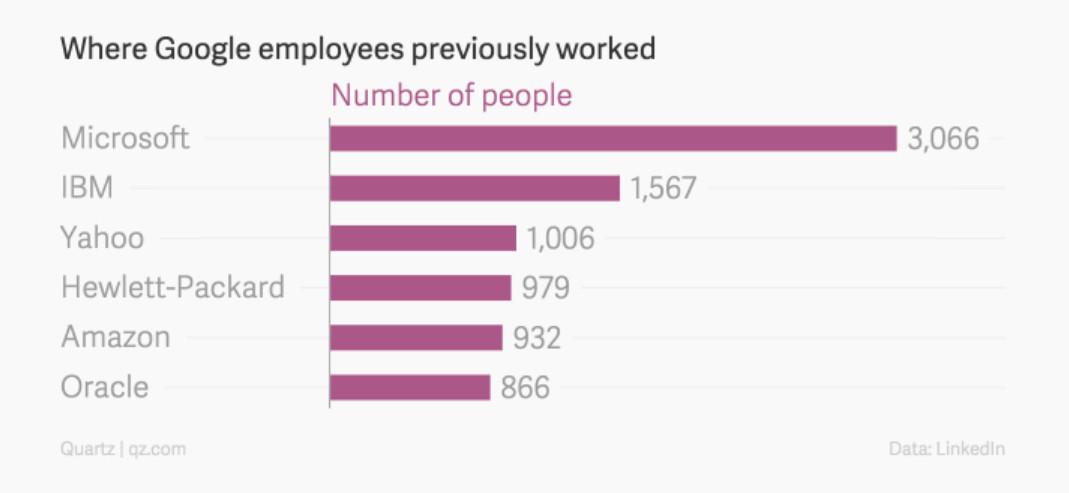
 Why indeed. It turns out that Google is literally the new Microsoft:

 (And we’re not just talking about low-level engineers here. Vic Gundotra, the former head of Google Plus, was a former Microsoft executive; which kind of explains a lot.)
 This may help to explain why Google is, I believe, slowly but steadily losing our trust. Nowadays, when you interact with Google, you don’t know if you’ll be talking to Awesome Google; Mammon Google; …or a former Microsoftian whose beliefs and values were birthed in Redmond, and who, as a result, identifies a whole lot more with Mammon — and with bureaucratic infighting — than with Awesome.
 Say what you like about Apple, and I can complain about them at length, you always know what to expect from them. (A gorgeous velvet glove enclosing an exquisitely sleek titanium fist.) But Google seems increasingly to have fragmented into a hydra with a hundred tone-deaf heads, each with its own distinct morality and personality. That wouldn’t matter so much if trust and awesomeness — “don’t be evil!” “moonshots!” — weren’t so intrinsic to the Google brand … which, to my mind, gets a little more tarnished every year.

New app lets you control exactly how much energy each appliance uses


Australia's national science organisation, the CSIRO, has developed a new app that lets you remotely keep track of exactly how much money you're spending on electricity at any given time - and even lets you monitor and control individual appliances from your phone.
While we can already stay on top of how much electricity our houses are guzzling on a daily basis using smart meters, the new prototype app - which is called 'Eddy' - wants to take things one step further by putting people in control of their power consumption, with the overall aim of saving people money and reducing greenhouse gas emissions.  

Right now the app only works on big devices such as air conditioners and pool pumps, but the developers are hoping that in the future they'll be able to take it down to the level of monitoring and turning on and off individual lightbulbs. 

10 Video Tutorials For Learning Android Development

Although Android programming is largely based on Java, but the two are entirely different from each other. Android is a a software stack, which comprises of an operating system, key applications and middle-ware. Companies are using Android programming language for application development and maintenance. And there is an increasing demand of Android developers. Hence, it is wise to learn this language at the right time as it will help you take a lead in the competition. Recognising the importance of this much-in demand skill, we at EFYTimes, bring to you some Android specific video tutorials/resources.

These video tutorials will help you learn Android programming better:

Android, Android development, Java, Tutorials for Android development, Google, Google Android, Operating system


1. Google developer and author Chet Haase's tutorials:
(a) DevBytes: View Animations
(b) DevBytes: Property Animations
(c) DevBytes: Property Animations
(d) DevBytes: CrossFading Animations
(e) Android development tutorial

2. Tutorial By Udemi

3. Tutorial By OreillyMedia

4. Tutorial By MarakanaTechTV

5. Tutorial By Android User Group

6. Tutorial By XDA Developers

Change/Edit Android Name And App Icon

Apk Edit - Edit Your Apk File (Android App) 

You want to edit apk file(android app) directly without the need of eclipse or command line build utility? Yes You can do it using APK Edit Utility
                    

                                       *******FOR EDITING NAME*******

  1. Step 1: First of all, we will need the APK package of the app you want to rename and change the icon for. If you don’t have the APK with you, but the app is installed on your phone, you can easily compile its APK using the Astro file manager. We have already discussed how you can make APK files of the installed apps (by backing it up using this app in link above) while talking about transferring the installed apps from one device to another over Bluetooth.
  2.  Step 2: Download and extract APK Edit v0.4 to a folder in your computer. As APK Edit v0.4 needs Java to work, please install it if you don’t already have it.
  3.  Step 3: Now that you have both – the APK file and the APK editor – let’s start with the editing. Launch APK Edit.exe that you extracted in the previous step and load the APK file you want to edit.

         4  Step 4: The tool will now read the file and display the app icon and name under the General tab. You can edit the name text field directly and click on the icon image to search for a new icon. Please make sure that the icon file is in PNG format and is a perfect square in dimensions
.


             Step 5: After you are done with the editing, click on the Apply button to save the changes.
Although the app gives you an option to directly push the apps to the device using a data cable, I would suggest you to transfer the modified APK file to your internal hard disk using Wi-Fi or data cable and then install it on the device.


Even while installing the file you will see the changes in the file name and the app icon. After the app’s installed, you will see the app with the user defined icon and name.


                                *******FOR EDITING ICON*******


1) Open and browse the apk file you want to edit.

 2) Wait for some time until the Browse link becomes clickable in Details Tab.


 3) Now, click on browse and folder structure will be opened.

 4) You can make small changes like string name change, image change, app name change & save the file to reflect the changes in apk file.


 To Change icon or images :- Replace existing images with new images.
To make name changes :- find strings.xml file in res and change the string’s values.
To make app name, package name changes :- Change the android manifest file.

After making all changes, save the file and close the folder structure.  Click On Ok and you will see the android app with all the changes you made.


*******Conclusion*******

You can use this trick to mask your secure applications on android. But do remember that the trick is only meant for personal use. Don’t try to change the name and icon of the app and publish it as your own work.

కరోనా కోవిడ్ -19 గురించి ఏ వికీపీడియా మీకు చెప్పలేము?

కరోనా కోవిడ్ -19 గురించి ఏ వికీపీడియా మీకు చెప్పలేము? మిమ్మల్ని మీరు రక్షించుకోండి  Your మీ చేతులను తరచుగా కడగాలి Eyes మీ కళ్ళు, న...